The Sales FTP Fetcher removes the manual work of downloading reports from your distributor's portal, cross-referencing them against remittance advice, and uploading them one by one. Instead, eddy retrieves the files from your distributor's server automatically and matches each report against the corresponding invoice. You review the reconciliation results and confirm the import; you remain in full control at every step.
The Sales FTP Fetcher is available on the Record Company plan only. If you are on a different plan and want to upgrade, go to Settings > Subscription.
Before your first fetch
Two things need to be in place.
Your distributor's FTP credentials, so eddy can reach their server. See the article on connecting your distributor's FTP credentials.
Your admin fee, so eddy calculates net amounts accurately during reconciliation. In Settings > Royalty Sources, open the relevant source template and configure it.
Then each month, gather your remittance advice PDFs (received by email from your distributor) before creating a new fetch. You upload them during fetch creation.
How to create a sales fetch
Navigate to the sales fetcher. Go to Sales > Sales Fetcher in the left sidebar.
Select the reporting period. Choose the period that corresponds to the remittance advice documents you received.
Upload remittance advice PDFs. Upload the remittance PDFs for each currency you received invoices in (EUR, GBP, USD). Include all PDFs from the same period in the same fetch.
Input exchange rates. Enter the exchange rates to use for each currency. Use the rates provided by your bank for the most accurate reconciliation.
Click Create. eddy retrieves the corresponding sales reports from the connected distributor server and matches them against your remittance advice. In most cases, all items are automatically reconciled and ready to import.
Reviewing and importing
Once a fetch is created, the summary screen shows the reconciliation status for each invoice. Work through any exceptions (see below), then:
When all items display a Reconciled status, use the bulk action menu and select Trigger All to import the sales reports into eddy.
Verify that the total import value matches the revenue shown on your remittance advice.
Mark the fetch as complete.
Start by reviewing Spotify, Deezer, and Apple Music reports first. These are the highest-volume sources, and resolving their matching issues before triggering bulk imports reduces the chance of the same problem cascading through every later file.
Fetch summary statuses
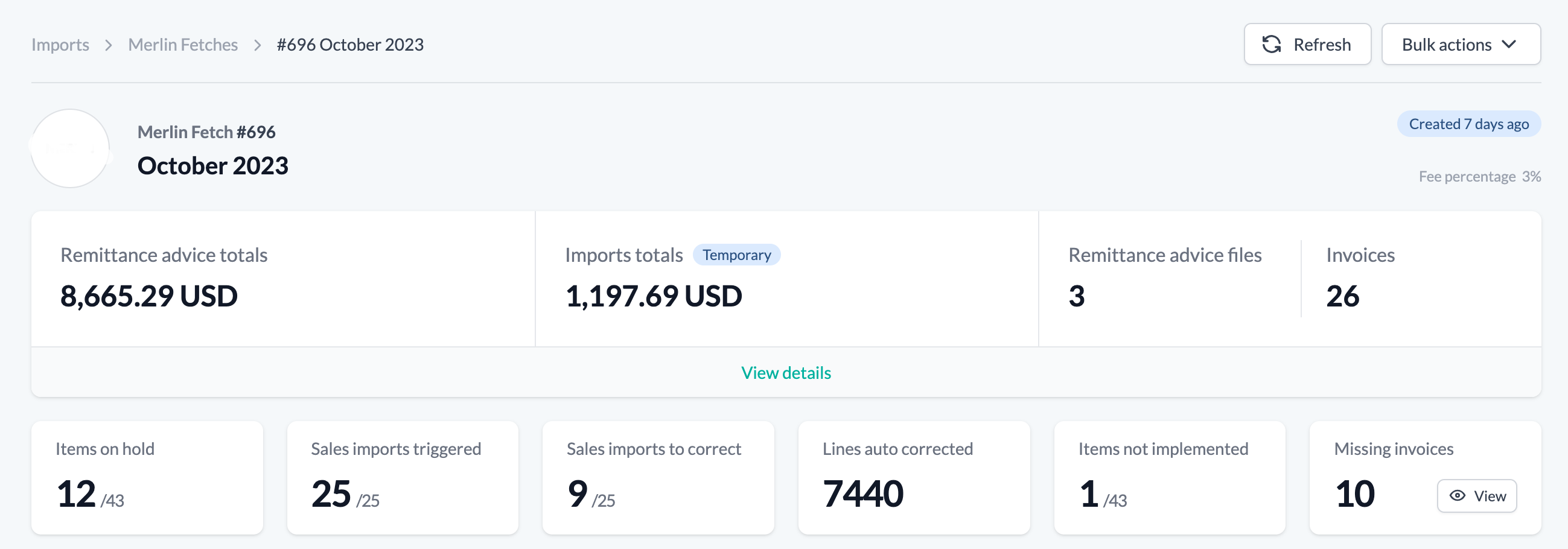
After a fetch is created, the summary panel shows the following counters:
Status | Description |
|---|---|
Items on hold | Excluded from the total remittance advice value calculation |
Sales imports triggered | Reports that have been successfully sent for import |
Sales imports to correct | Reports with discrepancies that require your attention |
Auto-corrected lines | Lines eddy resolved automatically without manual input |
Items not implemented | Invoices that the system does not recognize |
Missing invoices | Invoices present in the fetch but not found on the connected server |
Handling exceptions
Some items in a fetch may require manual action. Use the reconciliation statuses below to identify what to do next.
Reconciling
The system is still processing. Wait for it to complete before taking any action.
Amount Mismatch
A difference of more than 1% exists between the invoice total and the imported report value. Review both documents to identify the discrepancy. Differences smaller than 0.01 in any currency are automatically deemed negligible.
Manual Fetch
An import was manually linked to an invoice, typically for items that lack a report or have a specific issue that the automated fetch cannot resolve.
Reconciliation Error
A minor issue occurred during reconciliation. You can still import the report, but verify that the total import value aligns with the invoice before confirming.
Missing Invoices
The invoice was not found on the connected distributor server. Investigate directly with your distributor to confirm whether the report has been published.
Not Implemented
An unrecognized DSP invoice appeared in the fetch. Contact support@eddy.app with the invoice details so the team can add support.
No Report
No sales report is expected from this DSP. Use the Breakage Revenue tool to create a manual report for the invoice amount, then link it using the procedure below.
Sales Report Not Found
The report exists in principle but could not be retrieved. Check your distributor's dashboard (for Merlin, check the Merlin member portal) to confirm the report has been published. If it is not yet available, set the item on hold and come back to it when the report is ready.
Refetch Needed
The file needs to be retrieved again. Open the bulk action menu and initiate a Refetch for the affected item.
Matching issues
The report was retrieved and imported, but some sales lines could not be matched to catalog items. Open SolvX from the affected item and resolve the content matching issues there.

Creating manual reports for missing DSP reports
When your distributor does not supply a report for a specific invoice, you can create one manually using the Breakage Revenue tool and link it to the invoice.
Generate a report with the breakage revenue tool. Go to Sales > Breakage Revenue and follow the steps to define your scope and generate a pro-rated distribution file.
Link the report to the invoice. Use the Link function on the invoice row in the fetch summary to connect the manually created import to the corresponding invoice.
Match currencies. Ensure the currency in your manually created import file matches the template currency. If the invoice is in a different currency, specify the same exchange rate you used when creating the fetch.
Where to go next
Connect your distributor's FTP credentials. The one-time connection setup this feature runs on.
Resolve import issues. Lines that need review once a report has imported.
eddy is an independent platform. An integration with a third-party service does not imply affiliation, endorsement, or official partnership.