This article covers the default emails eddy.app sends to your payees, how to edit them, and which placeholders each one supports.
How to personalize outbound emails
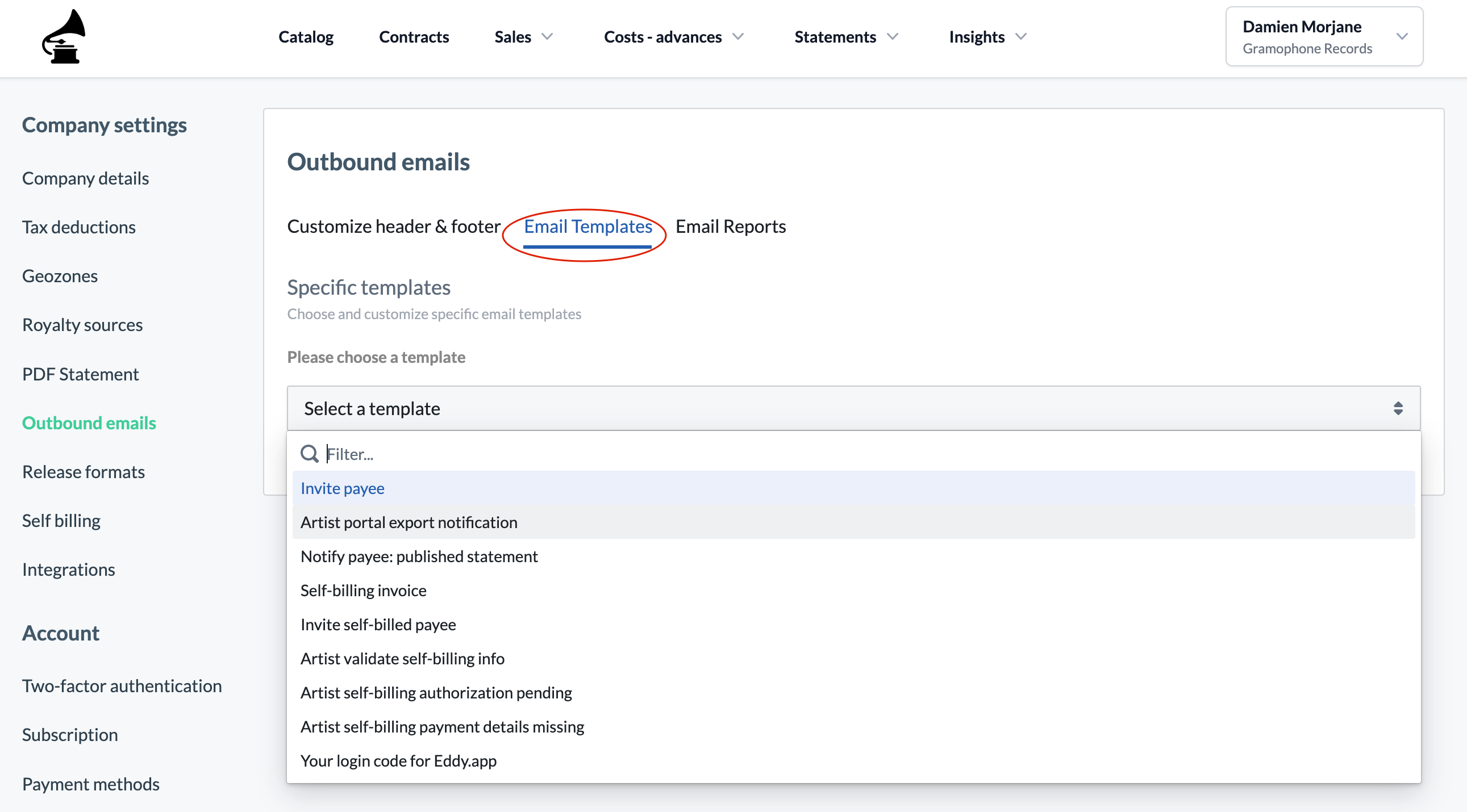
Go to Settings > Outbound emails and select the template you want to edit. You can change both the subject and the body.
Custom variables
Custom variables are placeholders that eddy.app replaces with real values when the email is sent. Copy the key from the variable list and paste it into the subject or the body.
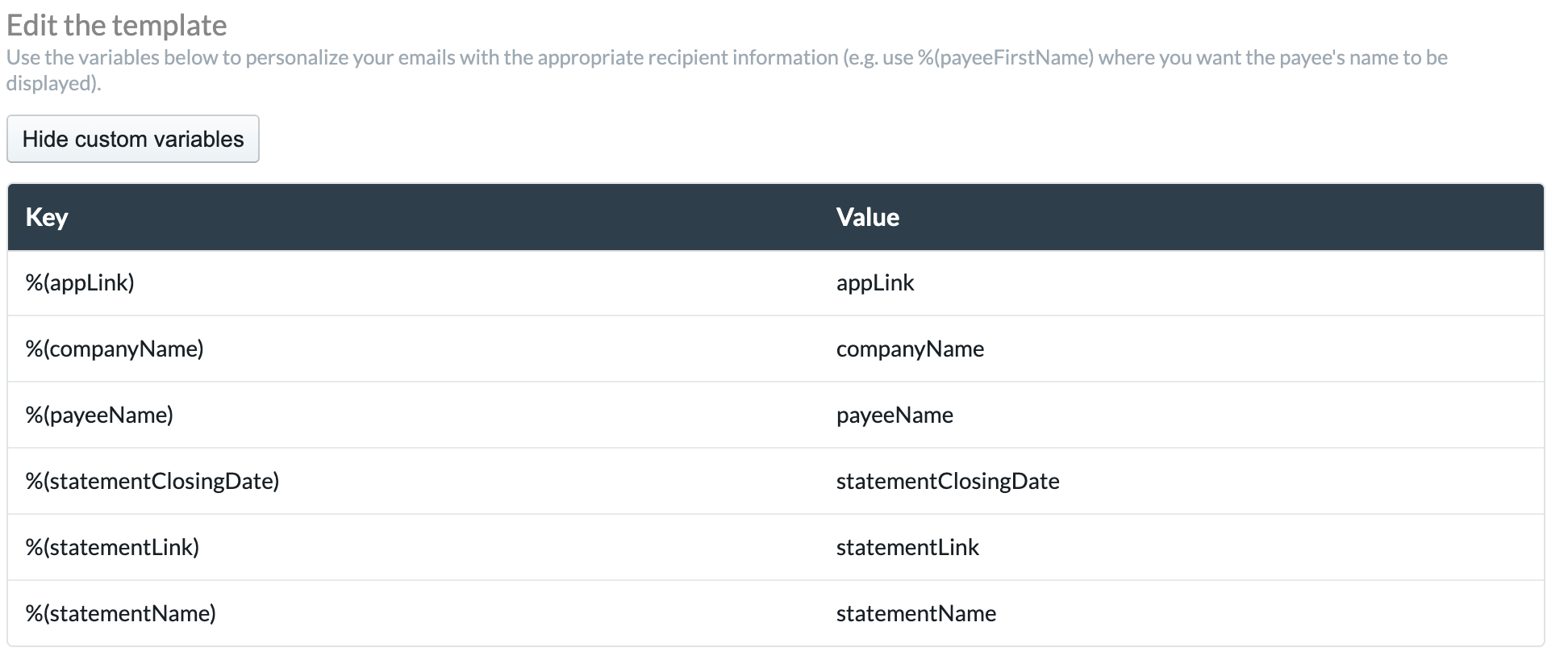
Each template below lists the variables it supports. A variable used in a template that does not support it will not be replaced, and the raw key will appear in the sent email.
Hyperlinks
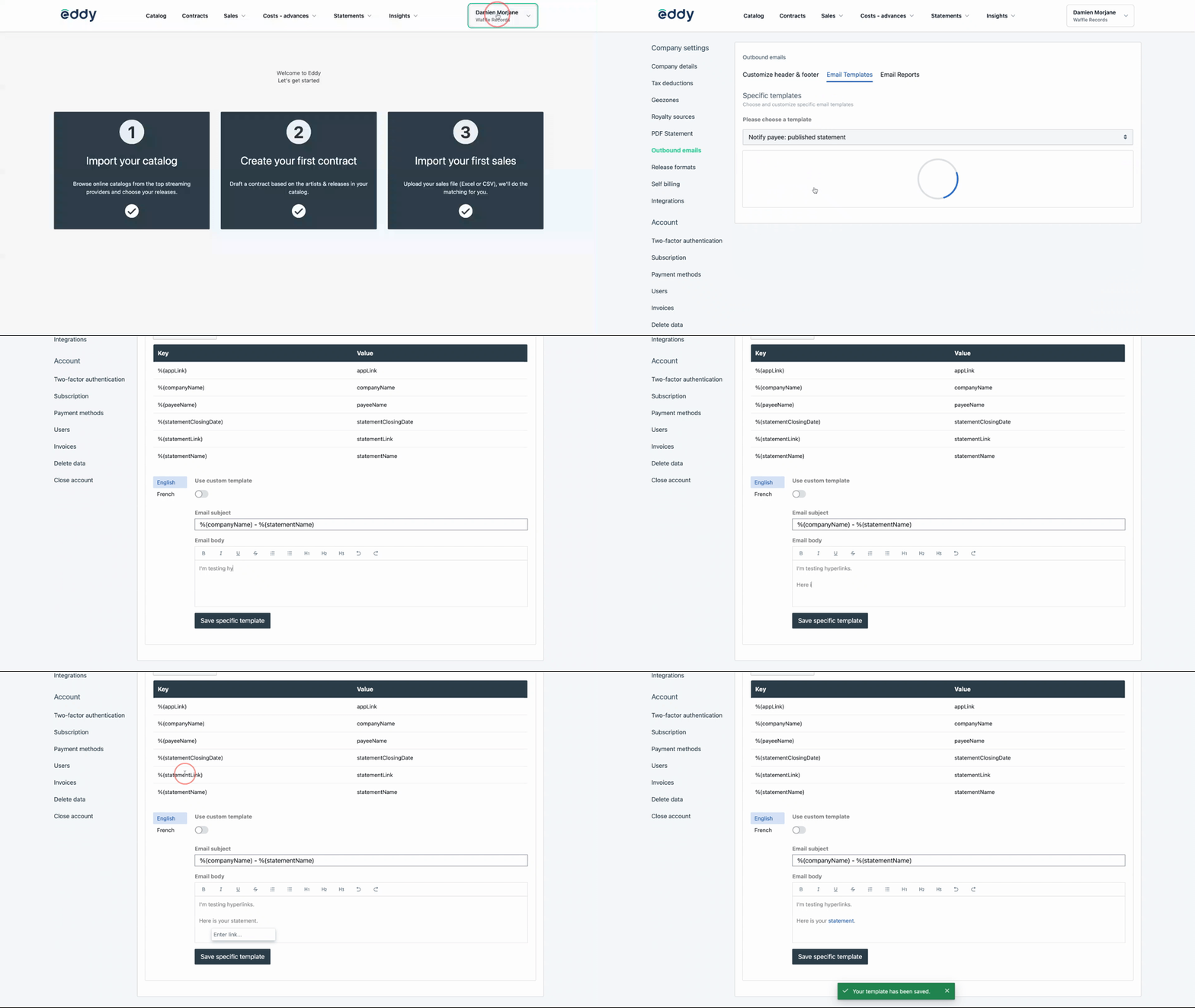
You can attach a link variable to a word or phrase rather than showing the raw URL. This is strongly recommended for URL variables: a visible URL is harder to read on mobile and makes the email more likely to be treated as suspicious.
Some variables are not URLs. %(portalLink) and %(listExportLinks) already render as a finished link or button, with their own wording. Do not hyperlink these to a word of your own. Each template below says which of its variables are ready-made.
Emails you cannot customize
Login codes, security alerts and other account-level notifications are sent by eddy.app rather than by your company, and cannot be edited. Only the payee-facing emails listed below are customizable.
Payee Portal invitation
Sent when: you invite a payee to their royalty portal.
Required: %(inviteLink)
Available: %(payeeName), %(companyName), %(inviteLink)
Default subject: %(companyName) has invited you to your royalty portal
Hi %(payeeName),
We use eddy.app for our royalty accounting and we'd like to invite you to your royalty portal, where you can see your releases, contract terms, royalty statements and revenue insights.
[Activate your royalty portal]
New to eddy.app? This guide to the royalty portal walks you through it.
%(companyName), via eddy
Statement notification
Sent when: you click Notify payees in the Published Statements section.
Payees receive one email per publish, listing all of their new statements, not one email per statement.
Required: %(statementLink)
Available: %(payeeName), %(companyName), %(statementCount), %(statementList), %(statementLink), %(transferAmount), %(portalLink)
Variable | Value |
|---|---|
| Number of statements in the email, as a phrase, e.g. "3 statements" |
| The list of statements, each identified by its subject |
| Downloads every statement in the list as a single zip. Works without signing in |
| The total of the statements in the email, as one amount. Not in the default copy |
| Ready-made link into the royalty portal, labelled "View %(statement_count) online". Conditional, see below |
%(portalLink) behaves differently depending on the payee:
Payee state | Link | What happens on click |
|---|---|---|
No users associated | Not shown | — |
Invited, not confirmed | Shown | A fresh signup email is sent to their registered address, and they see a page telling them to check their inbox |
Confirmed user | Shown | They sign in and land on their statement list |
Tip
%(portalLink)arrives as a finished link and is not shown to every payee, so do not attach it to wording of your own and do not mention the portal outside the block. Both leave a dead phrase behind for payees who get no link.%(transferAmount)totals only the statements notified in this email, and takes no account of payment or invoice status.
Default subject: %(companyName) published %(statementCount) for you
Hi %(payeeName),
%(companyName) has published %(statementCount) for you.
%(statementList)
%(portalLink)
[Download %(statementCount)]
Anyone with the download link can open your statements.
%(companyName), via eddy
Statement export ready
Sent when: a statement export has finished processing.
Required: %(listExportLinks)
Available: %(payeeName), %(exportFormat), %(listExportLinks)
%(listExportLinks) arrives as a finished button. Place it on its own, do not hyperlink it to a word of your own.
Default subject: Your %(exportFormat) export is ready
Hi %(payeeName),
Your %(exportFormat) export is ready.
%(listExportLinks)
Self-billing emails
With self-billing, eddy.app generates invoices on your payees' behalf, so you stop chasing them for paperwork built from data you already hold.
Before a payee can be self-billed, two separate things must be in place:
Validated billing and payment details
A signed self-billing authorization
When these emails are sent
These four emails are only sent when you send the self-billing set-up to your payees, either to all of them or to a selection. Nothing below goes out on its own, and none of it is triggered by publishing or notifying statements.

eddy.app then checks each payee individually and sends the one email matching their current state. A payee who has never been invited gets the invitation. A payee halfway through gets a reminder for whatever is still missing. Nobody is asked for something they have already done.
Tip: run this before your next statement batch. Payees who finish their set-up in time can be invoiced and paid as soon as those statements are published, instead of holding up the run while you chase them.
eddy.app checks each payee in this order and stops at the first gap:
If the payee | They receive |
|---|---|
Is not invited, or the invitation is still pending | Portal invitation |
Has neither valid billing nor valid payment details | Validate your billing and payment details |
Has valid billing details but no valid payment details | Payment details missing |
Has valid details but has not signed the authorization | Self-billing authorization pending |
Has valid details and has signed | Nothing, they are already set up |
All four should keep a link to the payee guide: https://help.eddy.app/docs/set-up-self-billing-for-payees
Available in all four: %(payeeName), %(companyName), %(appUrl)
Invite self-billed payee
Sent when: the payee has not been invited, or their invitation is still pending.
Required: %(inviteLink)
Default subject: %(companyName) has invited you to your royalty portal
Hi %(payeeName),
We use eddy.app for our royalty accounting and we'd like to invite you to your royalty portal, where you can see your releases, contract terms, royalty statements and revenue insights.
[Activate your royalty portal]
We'd also like to use self-billing for your royalties. It means we issue the invoices in your name, so you don't have to. Once your portal is active, add your billing and payment details and sign the self-billing authorization. Without both we can't issue your invoices, which may delay your payments.
New to eddy.app? This guide to self-billing takes you through it step by step.
%(companyName), via eddy
Validate billing and payment details
Sent when: the payee is invited, but neither their billing details nor their payment details are valid.
Default subject: Validate your billing and payment details
Hi %(payeeName),
We'd like to use self-billing for your royalties. It means we issue the invoices in your name once your statements are published, so you don't have to.
To set it up, log in to your royalty portal, validate your billing and payment details, and sign the self-billing authorization.
[Validate your details]
This guide takes you through it step by step.
Without this we can't issue your invoices, which may delay your payments.
%(companyName), via eddy
Self-billing authorization pending
Sent when: billing and payment details are both valid, but the payee has not signed the authorization.
Default subject: Sign your self-billing authorization
Hi %(payeeName),
Your billing and payment details are validated. The last step is to sign the self-billing authorization, which lets us issue the invoices for your royalties in your name.
[Sign your authorization]
This guide takes you through it step by step.
Without it we can't issue your invoices, which may delay your payments.
%(companyName), via eddy
Payment details missing
Sent when: billing details are valid but payment details are not.
Default subject: Your payment details are missing
Hi %(payeeName),
Your billing details are validated. We still need your payment details before your royalties can be paid.
[Add your payment details]
This guide takes you through it step by step.
Without them we can't issue your invoices, which may delay your payments.
%(companyName), via eddy
Writing your own copy
If you replace the default copy, keep these in mind.
Say who the email is from. Payees know your company, not eddy.app. Leading with your company name is what gets the email opened and trusted.
Link words, not URLs, for URL variables. Leave
%(portalLink)and%(listExportLinks)alone, they arrive already formatted.Do not promise a state that is not true yet. In the self-billing emails, nothing is active until the payee acts.
Keep the guide link. It absorbs most of the questions that would otherwise come to you.